Reflection
What designing this taught me about data-heavy interfaces
The hardest design problem in a data-heavy dashboard isn't adding features — it's deciding what not to show. At every review session, stakeholders would suggest another metric to add. All valid questions. But each addition competes with every other addition for a user's limited attention.
The framing that changed every conversation
"Yes — let's first understand which user needs that, how often, and whether it belongs in the primary view or in a drill-down." That question shifted every conversation from feature addition to prioritisation — which is the right conversation to be having.
The other thing I'd do differently: involve engineering earlier in the filter architecture. The flexible multi-dimensional filtering I designed required a non-trivial backend query structure that we discovered mid-development. Building that conversation in at the design stage would have prevented two weeks of rework.
What this case study is really about
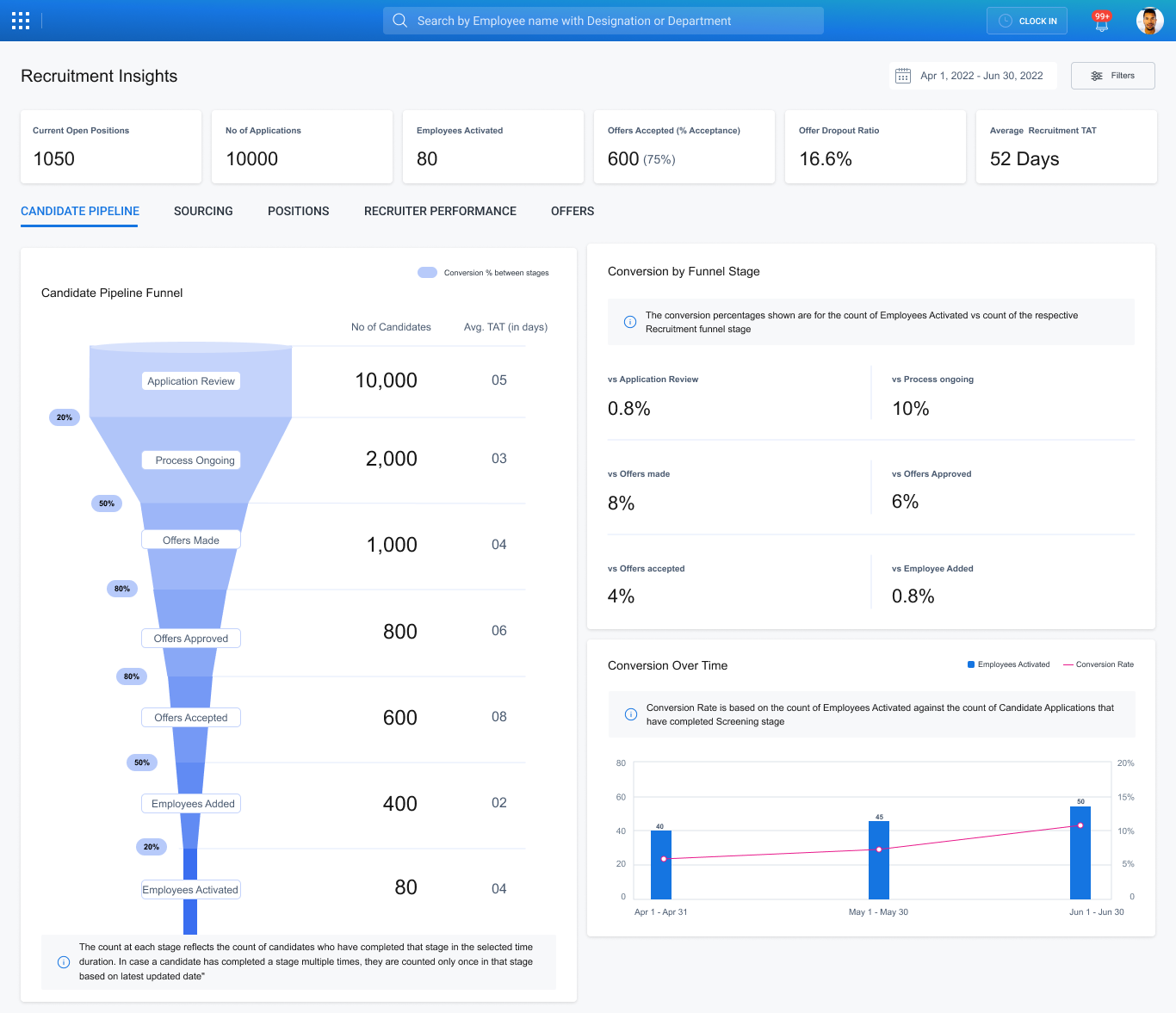
Designing for data isn't about making charts beautiful. It's about understanding the decisions your users need to make, and then building the shortest possible path between the data and those decisions. A TA lead asking "where is my pipeline stuck?" shouldn't have to think about query logic or report configuration to get the answer. That cognitive work is the designer's job — done once, in the system — so it doesn't have to be repeated by every user, every Monday morning.